

A project groups the boards, tickets, team, meetings and daily updates for one piece of work, such as a client engagement or an internal product. Admins and Leads can create projects.
Create a project
- 1
Open Projects
SidebarProjects+ New Project
- 2
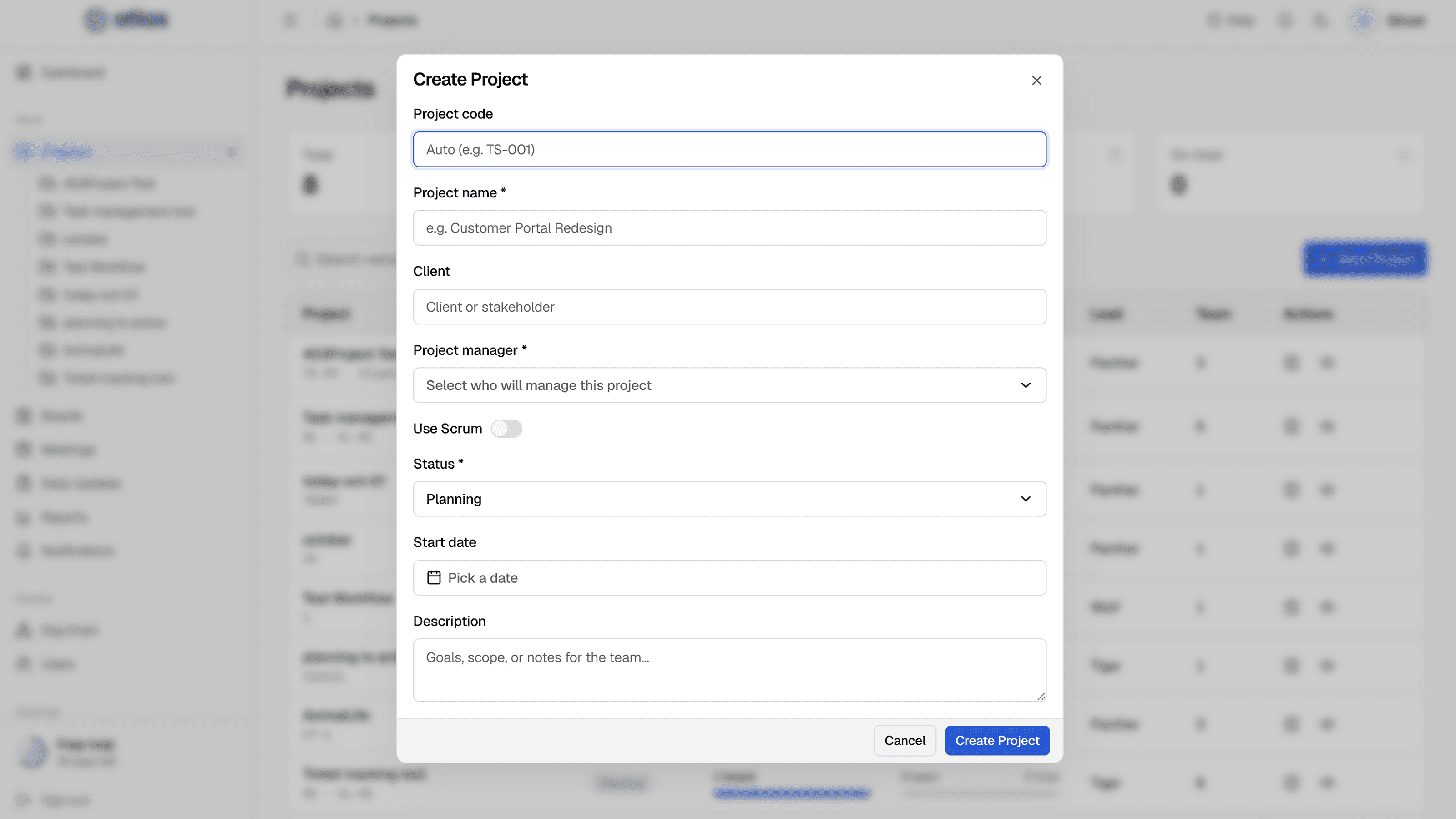
Fill in the details
See the field reference below.
- 3
Select Create Project
Atlas confirms the project code (for example "Project created (TS-012)") and opens the new project. The project starts with one board, named Reference, using the methodology you chose.
| Field | Required | Details |
|---|---|---|
| Project code | Optional | Leave it blank to auto-generate the next code in the TS-NNN format (TS-001, TS-002…). Ticket keys are built from this code. |
| Project name | Required | For example, Customer Portal Redesign. |
| Client | Optional | The client or stakeholder. |
| Project manager | Required | Admins only: choose who manages the project. When a Lead creates a project, they become its manager. |
| Use Scrum | Optional | Off (the default) creates a Kanban first board; on creates a Scrum board. Each additional board chooses its own methodology. |
| Status | Required | Planning (the default), Active or On Hold. |
| Start date | Optional | Sprint dates must fall inside the project's start and end dates. |
| Description | Optional | Goals, scope or notes for the team. |
Browse projects
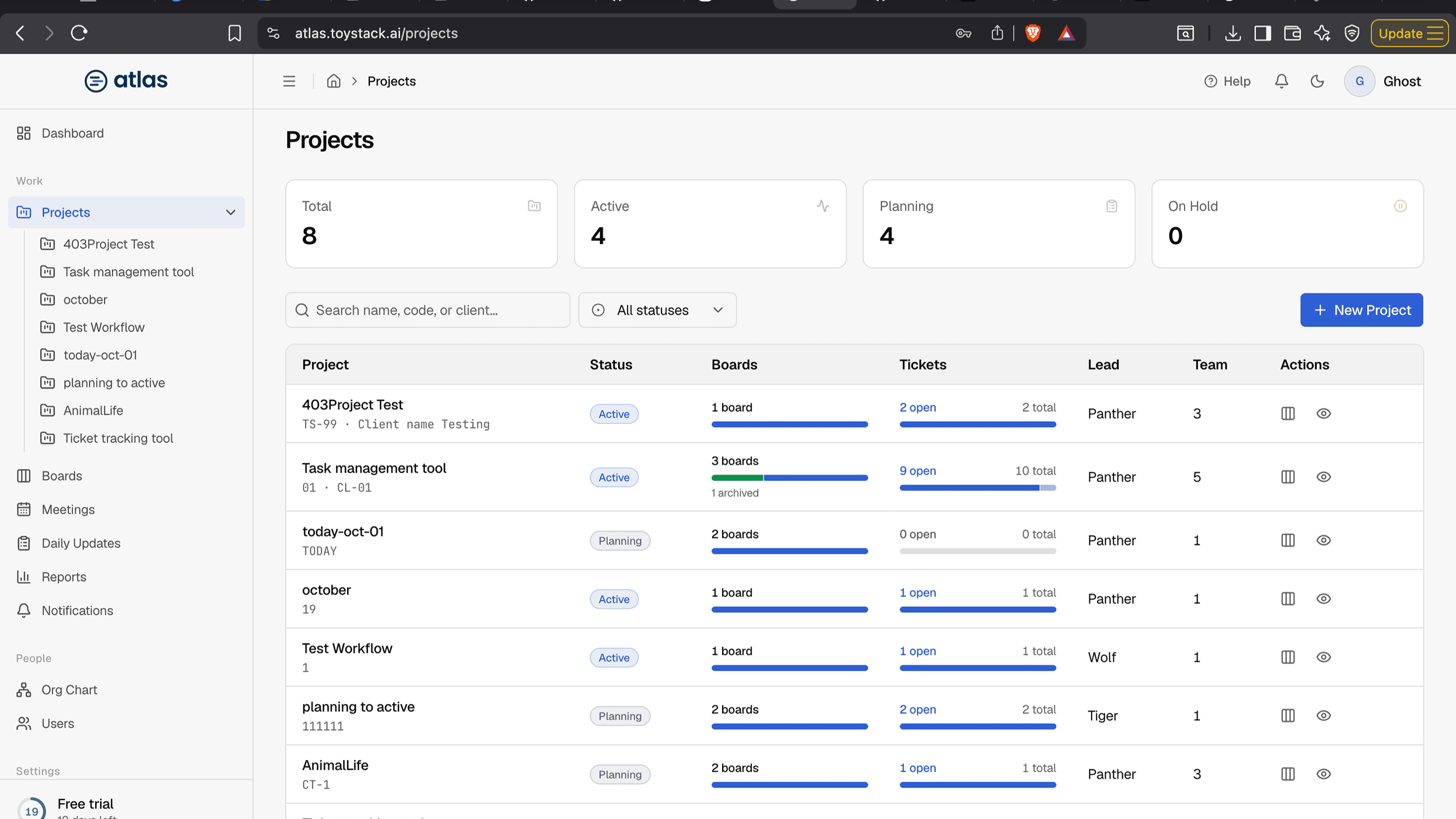
The Projects page shows four summary cards (Total, Active, Planning, On Hold), a search box (name, code or client), a status filter, and a table with one row per project:
| Column | Shows |
|---|---|
| Project | Name and project code. Select it to open the project. |
| Status | The project's status. |
| Boards | Number of boards, with a progress bar. |
| Tickets | Open and total tickets. |
| Lead | The project manager. |
| Team | Number of people on the project. |
| Updates | Daily updates submitted for the project. |
| Actions | Open the project's boards, or open the project's details. |
Edit a project
Open the project and choose Actions menuEdit. Besides the fields above, you can set an End date and choose any status, including Completed and Archived. The project code is required when editing.
Archive or delete a project
Admins and the project's manager can do both from the project's actions menu.
- Archive Project asks you to confirm, then sets the status to Archived. While a project is archived, its archived boards can't be restored.
- Delete Project asks you to confirm in a dialog, then removes the project from lists and returns you to Projects. In Reports, use the Deleted projects only filter to review deleted projects.
Manage the team
People must be on a project's team before they can join its boards, be assigned tickets, or attend its meetings. Use the project's Team section to add or remove people.