

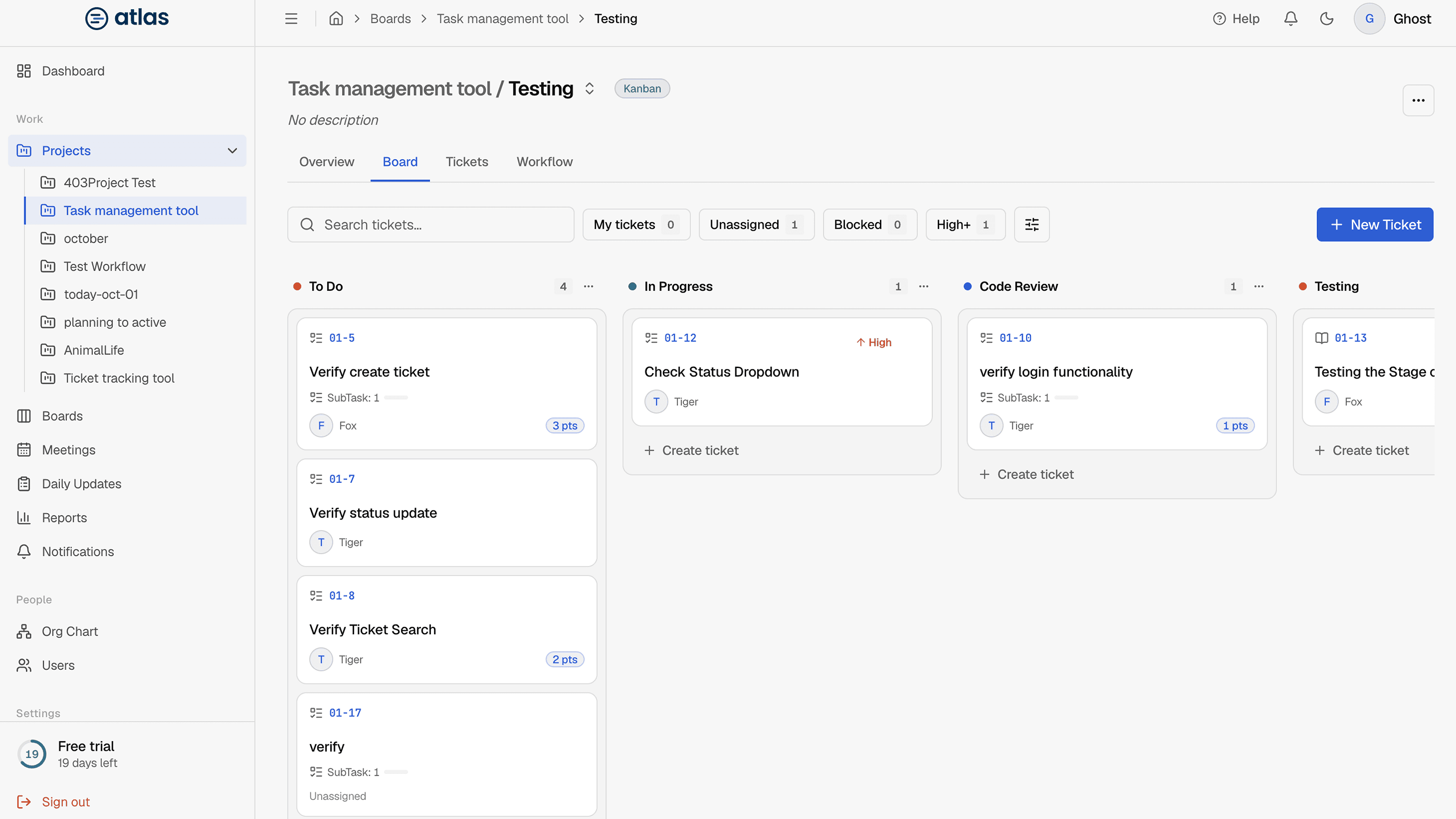
A Kanban board shows one column per workflow stage. Tickets move from left to right as work progresses. The toolbar shows Board · N open.
Move tickets
- Drag and drop a card to another column, or within a column to reorder it. Dragging also works from the keyboard.
- Or open the card's ⋯ menu and choose Move to… to pick a stage.
Admins and the project manager can move any ticket. Assignees can move their own tickets. See Who can edit tickets.
Read a ticket card
| Element | Meaning |
|---|---|
| Ticket key and title | For example TS-004-12. Select the card to open the ticket drawer. |
| Priority arrow | Critical, High, Medium or Low. |
| Blocked | Shown, and the card turns red, when the ticket is in a stage whose name contains “blocked”. |
| Subtask progress | A bar showing done subtasks out of the total. |
| Comment and attachment counts | How much discussion and how many files the ticket has. |
| Assignee | Who's working on it. |
Find work
Quick filters
One-click chips: My tickets, Unassigned, Bugs, High+ (High and Critical) and Open only. On a Scrum sprint board the chips are My Tickets, Unassigned, Blocked and High+.
Search and the filters panel
Search by key or title, or open the filters panel to filter by Assignee (including Unassigned), Type, Priority (including "High and above"), Status and Epic (including "No epic"). The board shows "X of Y tickets" while filtered. Choose Clear all to reset.
Create tickets from the board
Use New Ticket, or type a title straight into a column's quick-create box and press Enter. See Create tickets.
On a phone
On small screens, a column picker shows one column at a time.